
macOS
macOS 12 or later
Intel + Apple Silicon
Test build; not notarized by Apple.
OSDless puts external monitor brightness and contrast in your system tray. Spend less time reaching behind your monitor and adjust your desktop on macOS, Windows, and Linux.
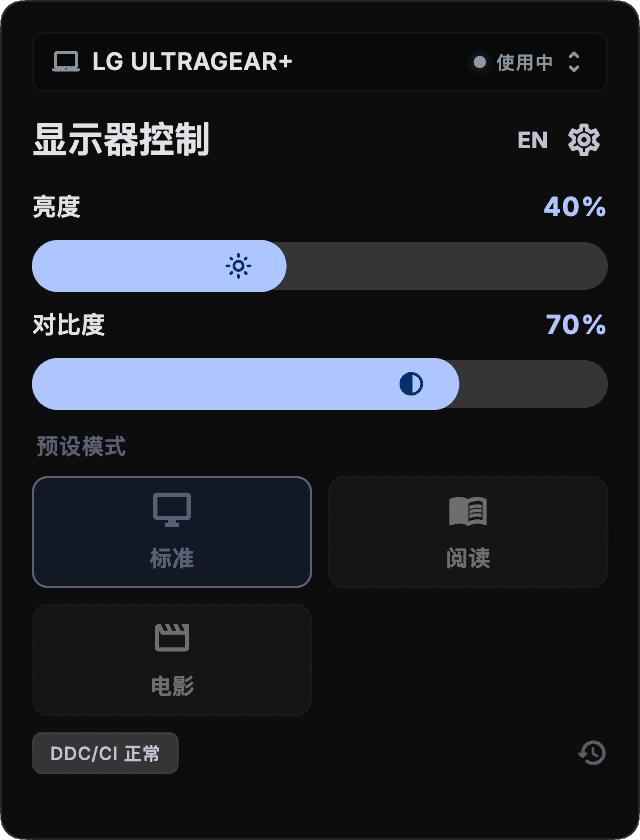
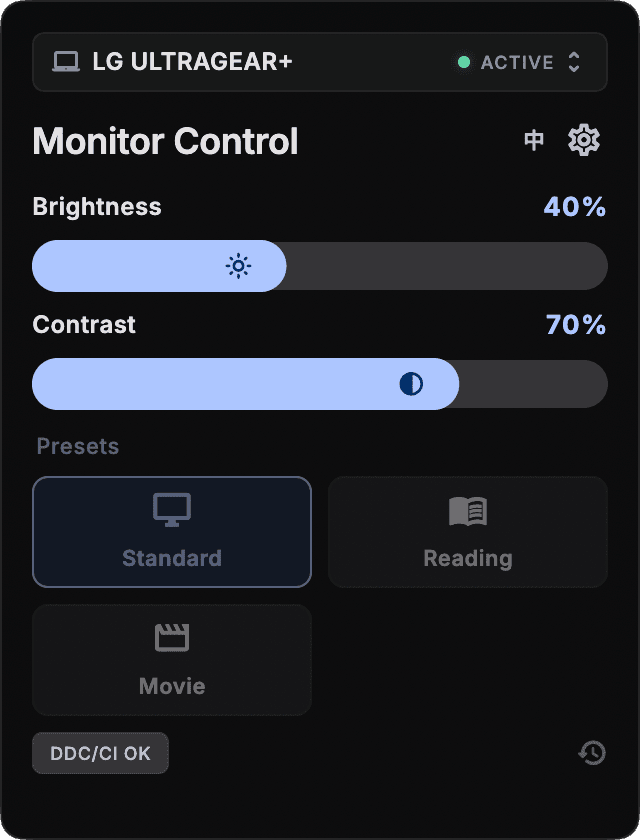
Open a compact panel from the system tray, select a monitor, and adjust its values.
Download the complete ZIP and follow the setup instructions. Enable DDC/CI in your monitor’s menu first.
Version 1.0.0
macOS 12 or later
Test build; not notarized by Apple.
Visual C++ x64 runtime required
Extract the entire archive; keep the DLLs and resources.
Ubuntu 22.04+ or compatible distributions
Requires GTK 3, AppIndicator, and I2C device access.
Initial test release. Build and startup checks do not establish compatibility with every monitor.
Focused controls for external monitors, with current values and device status clearly displayed.
Adjust hardware brightness and, when supported, contrast. Values are read back after each change to confirm the actual setting.
Switch between detected monitors to view and adjust them individually, ideal for desks with multiple screens.
Restore the brightness and contrast first read successfully for each monitor during this app session. This is not a factory reset.
Open the panel from the menu bar or system tray, in English or Chinese. On Linux, choose Displays from the tray menu.
Prepare the runtime for your system, then connect an external monitor that supports DDC/CI.
Drag OSDless.app into Applications. This build is ad-hoc signed and has not been notarized. If opening is blocked, verify that you trust its source, then follow Apple’s instructions in System Settings → Privacy & Security → Open Anyway.
Apple’s instructions for opening the appRun OSDless.exe with its DLLs, data, and osdless-cli.exe in place. Microsoft Visual C++ 2015–2022 x64 Runtime is required. This package is not publisher-signed.
Download Microsoft x64 runtimeExtract everything and run ./OSDless, keeping lib, data, and osdless-cli together. Install GTK 3 and Ayatana AppIndicator; GNOME needs a tray extension. Grant access using the i2c group or device-scoped udev rules. Do not run the app persistently as root. On Wayland, the compositor controls window placement.
DDC/CI availability depends on the complete connection between your computer and monitor.
Your monitor must support DDC/CI and have it enabled. Cables, docks, KVMs, and graphics drivers can affect communication. Built-in displays are not the main target of this release.
Release packages undergo native build and startup checks. Real tray interactions and monitor reads and writes on Windows, Linux, and Intel Macs still need validation on more devices. Check the results with your own monitor.
The app reports its device status. You can open a support email draft inside the app and review it before sending it to the author. Email is never sent automatically.